
Choose according to who needs to find the document.
OneDrive holds an individual's files: drafts, notes and documents in preparation. SharePoint holds documents that a team or department needs to find over the longer term. Teams is not a third storage location: it provides access to files stored in SharePoint or OneDrive.
To decide, ask one question: who will need to find this document in a year's time, and who will take it over if its author changes role? If the answer is 'the team', the document belongs in SharePoint, even if it started in OneDrive.
Microsoft's introduction to file collaboration describes this arrangement for a small organisation: each user stores their files in their OneDrive library, and a single Teams team may be enough for all employees. The same page notes that version history is enabled by default. A team can therefore work on a single file rather than exchanging copies.
Where does Teams actually store files?
Teams stores files in different places depending on whether they are added to a channel, sent in a chat or produced by a meeting. Channel files belong to the team's space. Chat files and meeting recordings, except channel meeting recordings, remain in an individual's OneDrive and therefore depend on their account.
Microsoft's documentation on Teams-connected sites describes the SharePoint side. Microsoft's help page on file storage in Teams covers chats, and its page on meeting recording storage covers meetings. Team membership is managed through a Microsoft 365 group, and Microsoft recommends managing access from Teams rather than sharing the site separately.
- Standard channel: creating a team creates a SharePoint site. All standard channels share that site, with one folder per channel, and all team owners and members have access.
- Private or shared channel: each receives its own SharePoint site, restricted to its members. This site cannot be shared separately.
- One-to-one or group chat: the uploaded file is stored in the Microsoft Teams Chat Files folder in the sender's OneDrive and shared only with participants.
- Meeting: the recording is stored in the organiser's OneDrive, even if they did not attend. For a channel meeting, it goes into the Recordings folder on the team's SharePoint site.
Storage locations by use case.
The table matches common uses to their corresponding locations in Microsoft 365. The final column shows what to check when someone leaves the business; the timeframes are explained below.
The rule that does most to reduce duplication fits into one sentence: when a file becomes a team document, put it in the channel, and link to that file from the chat instead of attaching another copy.
| Use | Location | Who is responsible | External sharing | When an employee leaves |
|---|---|---|---|---|
| Draft or individual work | The user's OneDrive | The user, under the company's rules | Never more permissive than SharePoint | Transfer useful files before removing the licence or deleting the account |
| Long-term departmental documents | A SharePoint site library | The designated owner of the space | According to the site's setting | Nothing to move; review permissions and ownership |
| A project managed in a standard channel | The channel folder on the team's SharePoint site | The team owners | Sharing links, if guest sharing is enabled | Remove the person from the team |
| Confidential work within a subgroup | A private channel with its own site | The channel owners | Sharing links, according to the settings | Check that another owner remains assigned |
| Work with an external partner | A shared channel, or a dedicated site enabled for external sharing | The business owner of the collaboration | Only the channel's external participants, or the site's guests | Remove access at the end of the engagement |
| A file sent in a chat | The sender's OneDrive, in the Microsoft Teams Chat Files folder | The sender | Chat participants | Move anything the team still needs into the channel |
| Meeting recording | The organiser's OneDrive, or the team site for a channel meeting | The organiser, or the team owners | No external access by default; the organiser must share it | Move recordings that need to be retained |
Define responsibilities before folders.
Assign an owner to every important shared space. They oversee organisation, review access requests and flag changing needs. This role does not require Microsoft 365 administrator permissions: in Teams, it most often corresponds to a team owner.
Start with a filing structure the team can explain, for example by activity and then by project. Test it on a real folder before extending it to the rest of the department.
Permissions matter even more if you use Copilot. According to Microsoft's page on Copilot privacy, the assistant only displays organisational data that each user has at least permission to view. A folder opened to the whole business for convenience can therefore appear in any employee's responses. Microsoft recommends using SharePoint's permissions models so that each person can access the right content.
Our Microsoft 365 support helps connect this organisation with workspaces, identities and sharing rules.
Check external sharing.
External sharing is enabled by default across SharePoint and OneDrive, according to Microsoft's external sharing documentation. It is configured at organisation level and then for each site. When the two levels differ, the more restrictive setting applies, and OneDrive cannot be more permissive than SharePoint. Allowing it for the organisation does not automatically enable it on every new site.
Microsoft advises storing confidential information in a site where external sharing is disabled, and creating separate sites for external collaboration. Its introduction to file collaboration also warns against the opposite extreme: if restrictions prevent people from working, users find other ways to share that are less visible and less controlled.
In a shared channel, files can only be shared with members of the organisation and the channel's external participants. Before sharing anything, check four points:
- the recipients and the documents they actually need;
- the link type: 'Specific people', or 'Anyone', which does not require sign-in;
- the person who monitors access during the collaboration;
- the date on which access will be removed.
What happens to a departing employee's files?
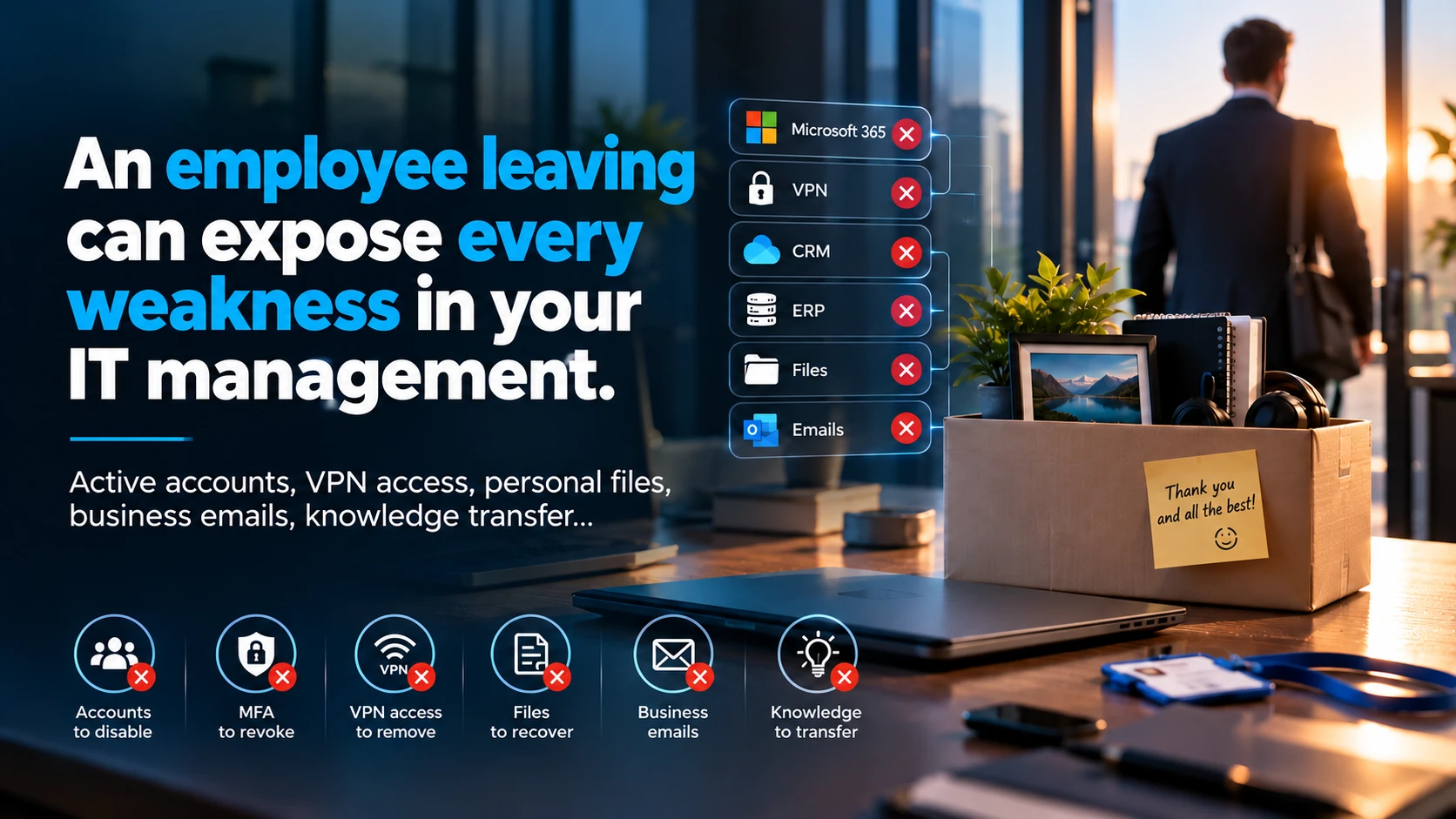
Their files remain in their OneDrive, including those sent in Teams chats and recordings of meetings they organised. Removing their licence or blocking sign-in does not transfer the files to anyone. According to Microsoft's page on OneDrive retention, the standard deletion process and its 30-day retention period only start when the account is deleted in Microsoft Entra ID.
When the account is deleted, the line manager receives access to the OneDrive by default, provided they are recorded in Entra ID. Otherwise, access goes to the secondary owner defined in the SharePoint admin centre; if neither is set, nobody receives access automatically. This delegation only happens when the account is deleted, not simply when the licence is removed.
That person can then use the simplified transfer process described by Microsoft. It moves files to another location, such as a SharePoint site, and can preserve existing sharing. Microsoft Lists and Forms are not included.
The timeline for an unlicensed OneDrive.
Removing the licence starts a different timeline, the one for unlicensed OneDrive accounts. From day 60, the account becomes read-only and its content is no longer accessible to users or administrators without an administrative action. In practice, this is the deadline for moving files. The table reflects the default settings described on the two Microsoft pages, consulted on 17 October 2026.
Microsoft 365 retention policies and labels take precedence over the standard deletion process: content may be deleted before 30 days or kept for longer. This protection has a limit. Since 1 July 2026, if billing for unlicensed OneDrive accounts is not enabled, an account that remains unpaid may be deleted after 365 cumulative days, even if it is subject to a retention policy or litigation hold. For an account that was already unlicensed on that date, this risk starts no earlier than 1 July 2027. Check your configuration before communicating a timeframe to your teams.
Retention does not replace a backup either: to define recovery objectives and test restores, review your backup and disaster recovery strategy.
| Time | Account retained, licence removed | Account deleted in Entra ID |
|---|---|---|
| Day 0 | Nothing is transferred; the unlicensed account timer starts | The manager or secondary owner receives access and an email |
| Day 30 | No change | End of the default retention period (configurable), announced 7 days beforehand; OneDrive spends 93 days in the recycle bin and can be restored through PowerShell |
| Day 60 | Read-only: content inaccessible without an administrator's action | In the recycle bin |
| Day 93 | Archiving: access only after licensing, billing or reactivation | In the recycle bin |
| Day 123 | No change | Permanent deletion after leaving the recycle bin, unless covered by a retention policy or litigation hold (see Day 365) |
| Day 365 | Possible deletion after 365 unpaid days, even under retention or litigation hold, if billing is not enabled | The same rule applies to a OneDrive kept longer by retention and left unpaid |
A scenario to put the rule to the test.
Illustrative example: an SME is preparing a proposal for a client. A salesperson writes the first draft in her OneDrive, then sends it to a colleague in a Teams chat for review; this copy is in her Microsoft Teams Chat Files folder. The reference version is then placed in the sales team's 'Proposals' channel. The salesperson also records the kick-off meeting she organised with the client, and the recording goes into her OneDrive.
Three months later, she leaves the business. The administrator removes her licence without deleting the account, so nobody receives automatic access to her OneDrive. The proposal stored in the channel remains available to the team. The chat copy and recording remain in her OneDrive and become inaccessible on day 60 without an administrator's intervention. They needed to be moved beforehand, ideally with her during the handover.
To test your own rule, take a real project file and ask three questions: where is the reference version, who can share it with the client, and who takes over the files if their author leaves? Record any missing answers before moving the historical files.
Decisions to make before reorganising.
An IT roadmap helps plan changes, responsibilities and user support. Start with a limited scope, such as one department, then check that documents remain easy to find and access matches people's needs. If you do not have a clear picture of how your spaces are currently organised, an IT audit establishes the current position.
- Classify documents as individual or shared
- Assign an owner and a deputy for every shared space
- Decide site by site where external sharing is permitted
- Record each account's manager in Entra ID, or a secondary OneDrive owner
- Write the departure procedure: OneDrive files, chat files, recordings, then account deletion, together with the Microsoft 365 account access rules
- Document the restore arrangements