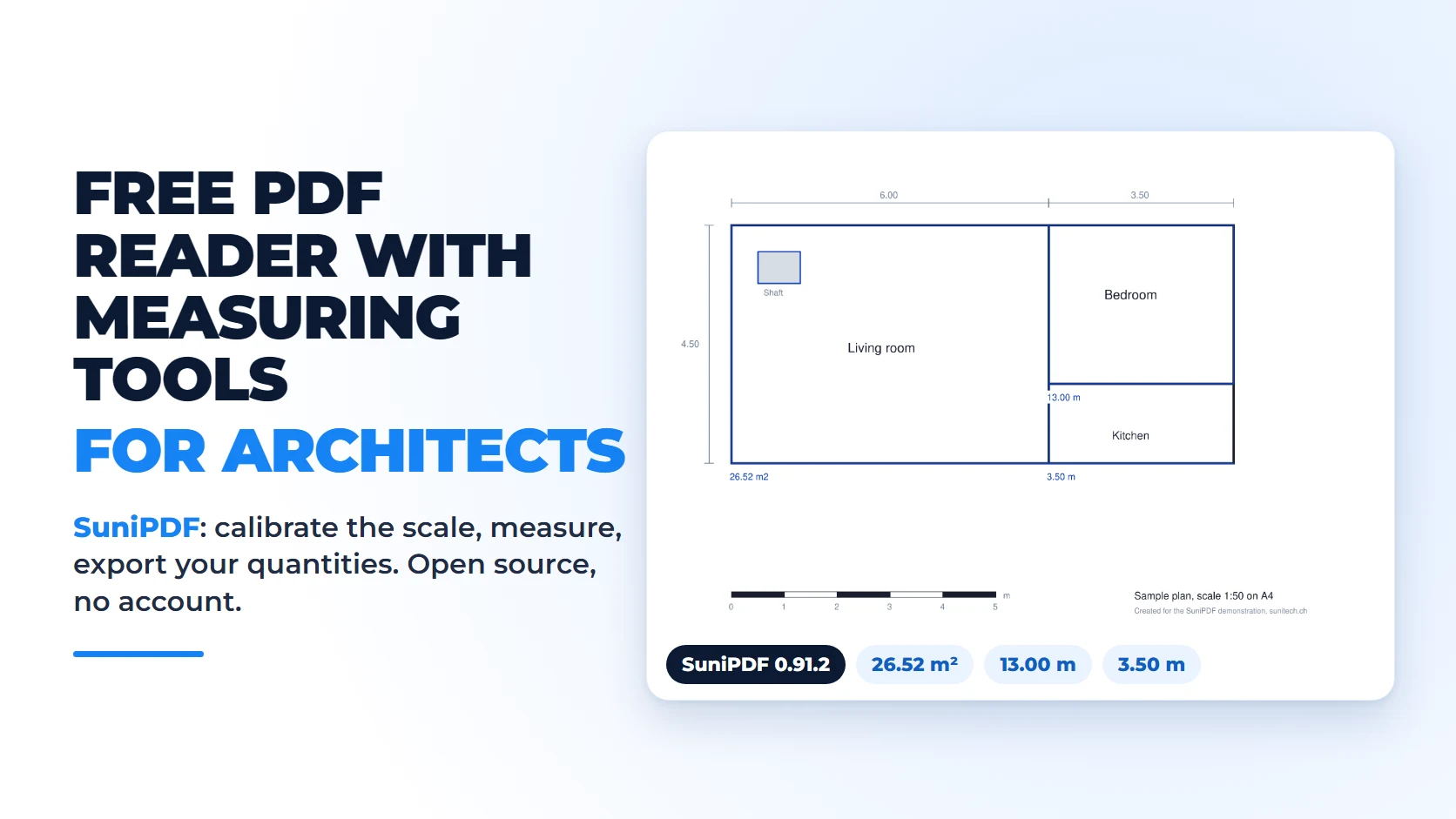
In an architecture practice, many drawings arrive as PDFs: surveys, engineers' plans, variants sent by the client. To take a length or an area off one of them without opening CAD software, you need a PDF reader that can measure to scale. Adobe Acrobat Reader, which is free, only offers its measuring tools when the author of the PDF has enabled them for Reader users (Adobe).
SuniPDF is a free, open-source PDF reader and editor for Windows, Ubuntu and macOS. It calibrates a drawing's scale from a known dimension, then measures lengths, perimeters, areas with deductions and volumes. It works without an account or telemetry, meaning it sends no usage data, and your plans stay on your computer (SuniPDF on GitHub). Disclosure: SuniPDF is developed by Emanuel De Almeida, founder of Sunitech and author of this article. Other software also offers measuring tools; this article covers this one because its author knows it from the inside.
The software is released under the MIT or Apache-2.0 licence, with no subscription, and its source code is public. Its ITHub listing summarises its features and platforms.
What SuniPDF measures on a PDF plan
SuniPDF covers the usual measurements of a takeoff from a drawing (SuniPDF on GitHub):
- Lengths between two points and polyline lengths, for walls, skirting or service runs.
- Perimeters and polygon areas, with deductions for openings, shafts or courtyards.
- Constant-depth volumes, calculated from a net area and a depth you enter, for a screed or a slab (volume documentation).
- Angles, dimensioned rectangles and counts: the tool can suggest similar symbols, which you check before keeping them.
Available units are millimetres, centimetres, metres, inches and feet, with 0 to 4 decimal places (measurement documentation). Each measurement is saved in the PDF as an annotation that keeps its own scale. The Quantity table groups the measurements, applies unit prices and exports PDF, CSV or JSON reports, as well as XLSX workbooks.
Whichever PDF reader you choose, four points are worth checking: calibration on a known dimension, deductions within areas, saving the scale in the file, and processing plans on your own computer.
How to measure a PDF plan in four steps
The interface opens in English; French is available from the globe icon at the top right of the window. The method takes four steps (measurement documentation):
- Open the tool. Open the plan, then choose Tools (F9 key), Review & measure, Measurements.
- Calibrate the page. Choose the unit and the number of decimal places, click Calibrate this page, then click both ends of a known dimension. Enter the Known distance and confirm with Confirm scale.
- Measure. Choose the measurement type and click the points. A length is previewed as soon as you place the second point; for a polyline, a perimeter or an area, finish with Preview measurement or the Enter key. To deduct a shaft or an opening from an area, draw the outer boundary first, click Add deduction, place at least three points strictly inside it, then click Finish deduction. Check the value and click Apply: nothing is added to the PDF before this step.
- Keep the scale. Click Save scale in PDF, then save the file: the scale is reloaded the next time you open it.
Two settings prevent mistakes on architectural drawings. Snap to PDF vectors places points on the ends and intersections of the drawn lines; it does not work on a scanned plan (plan workspace documentation). For a sheet that mixes several scales, such as a 1:100 plan with a 1:20 detail, Scale regions give each region its own calibration.
Worked example: a 1:50 plan measured with SuniPDF
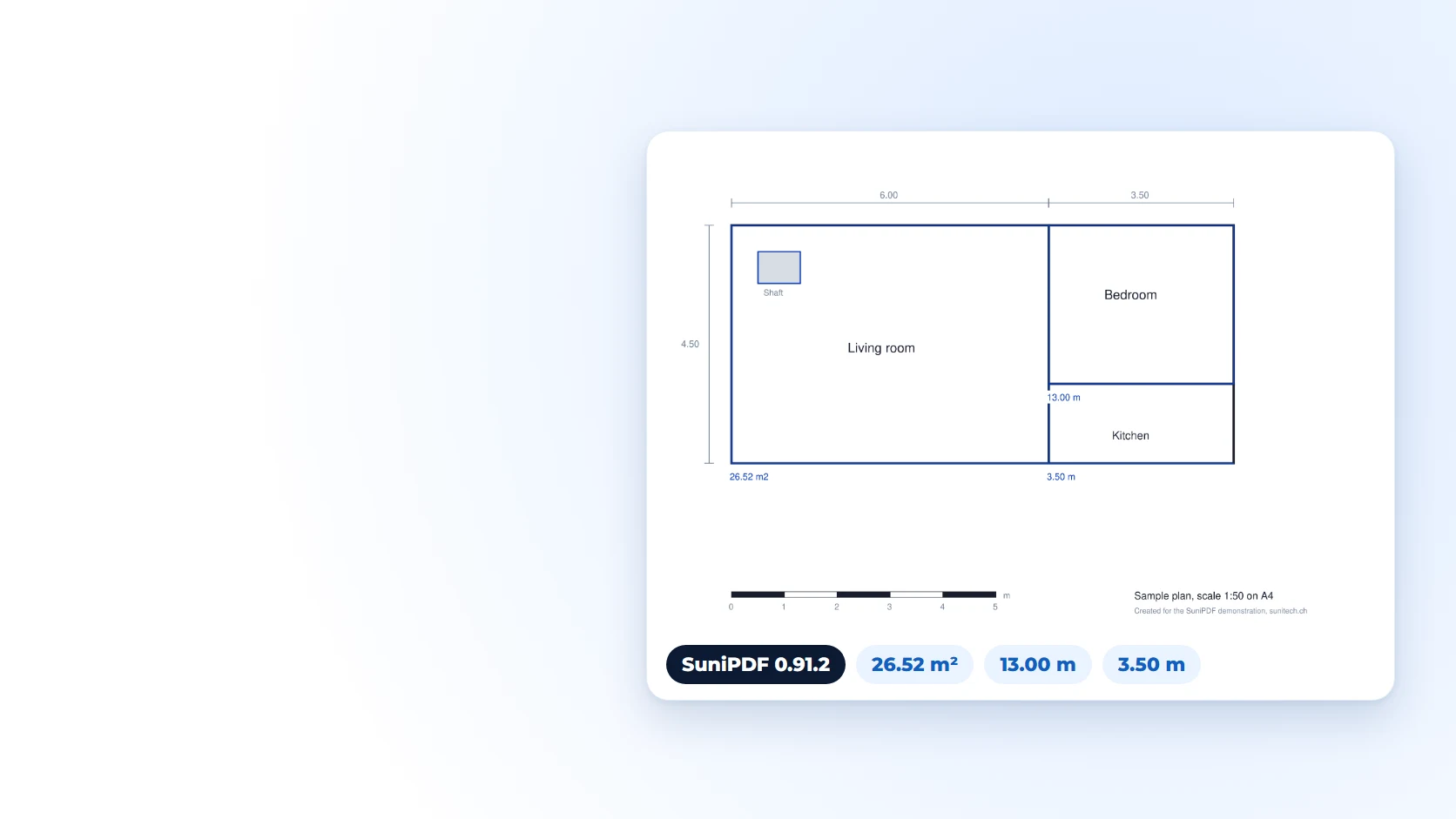
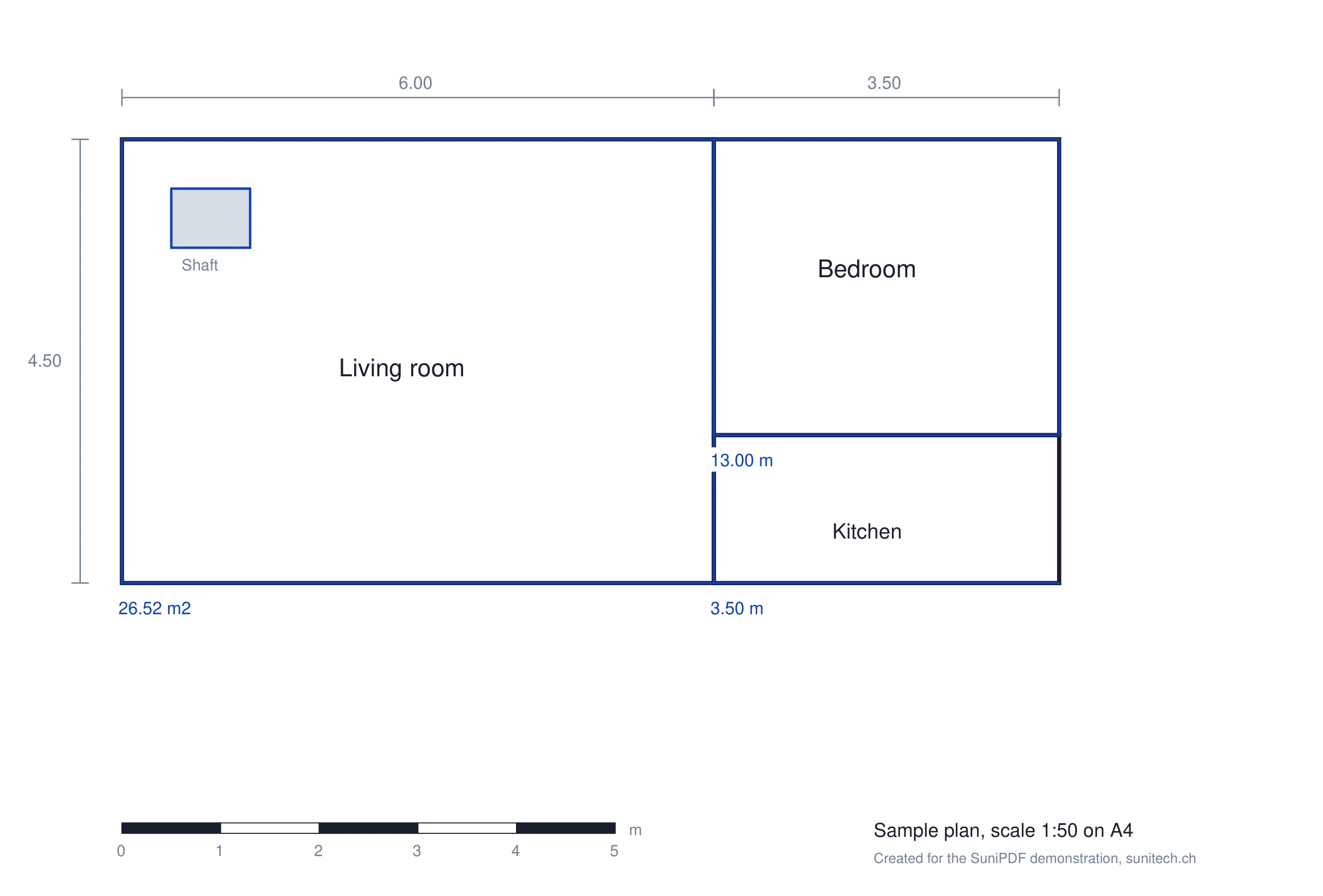
To check the calculation, a sample plan was drawn for this article at 1:50 on A4, with known dimensions: a 6.00 × 4.50 m living room containing a 0.80 × 0.60 m shaft, a 3.50 × 3.00 m bedroom and a 3.50 × 1.50 m kitchen. The page was calibrated on the 6.00 m dimension, then measured with SuniPDF 0.91.2, released on 28 October 2026, using its command-line tool.
| Measurement | Expected value | SuniPDF result |
|---|---|---|
| Living room area, shaft deducted | 27.00 m² minus 0.48 m², i.e. 26.52 m² | 26.52 m² |
| Bedroom perimeter | 2 × (3.50 + 3.00), i.e. 13.00 m | 13.00 m |
| Kitchen wall length | 3.50 m | 3.50 m |
Before rounding, SuniPDF returns 3.500019 m for the wall and 13.000056 m for the perimeter: the difference stays below 0.1 mm. This test checks the calculation on a clean vector plan (exported from drawing software, not scanned), not how precisely someone clicks with a mouse; it does not replace checking a dimension on your own drawings.
Which measurement for which task?
The measurement type depends on the quantity you need.
| Task | Measurement in SuniPDF | Watch out for |
|---|---|---|
| Area of a room or a floor | Polygon area, with deductions | Deduct openings, shafts and columns |
| Length of walls, skirting or service runs | Length or polyline length | Turn on snapping on a vector plan |
| Perimeter of a room | Polygon perimeter | The polygon closes itself: do not click the first point again |
| Screed, slab or backfill | Constant-depth volume | Enter the depth and its unit |
| Doors, sockets or light fittings | Count | Check the suggested symbols |
| Angle of a roof or a wall | Angle, in degrees | No scale needed |
The Quantity table then adds up these measurements and exports them for a quote or a specification (quantity table documentation).
Limits to keep in mind
SuniPDF calculates from the dimension you choose. A wrong reference, or a plan from another revision, distorts every measurement that depends on it: the documentation states that the software does not prove dimensional accuracy and that the user must check the known distance and the drawing revision (measurement documentation).
- Scanned plans. They can be measured after calibration, but without snapping to lines. A scan may be slightly distorted: calibrate on the longest dimension available and check a second one.
- Measurements from other software. Measurements saved in a PDF by another program are not reused: SuniPDF reports them instead of reinterpreting them.
- Platforms. Windows 10 and 11 (x64), Ubuntu 22.04 and 24.04, and macOS 12 or later on Apple silicon only. Text recognition (OCR) is not available on macOS (SuniPDF on GitHub).
- Installers. The Windows packages are unsigned and the macOS image is not notarised, meaning it has not been checked by Apple: the system may ask for confirmation on first launch (known issues).
Installing SuniPDF on the practice's computers
SuniPDF is downloaded from its release page on GitHub: an MSI installer or portable archive for Windows, a DEB package for Ubuntu and a DMG image for macOS. Each file comes with its SHA256 checksum, which lets you confirm that the download is intact. New versions are announced at startup, a notification you can turn off.
In a practice with several workstations, the MSI installer lends itself to central deployment, for example with Microsoft Intune, a task for the practice's IT support. Users do not need to create an account.
Frequently asked questions
Is SuniPDF really free?
Yes. The software is released under the MIT or Apache-2.0 licence, as you choose, with no account or subscription, and its source code is public (SuniPDF on GitHub).
Are my plans sent to the cloud?
No. PDFs are processed on your computer and the software sends no telemetry (SuniPDF on GitHub). Updates are downloaded from GitHub over HTTPS (known issues), and the new-version notification at startup can be turned off.
Can I measure a scanned plan?
Yes, after calibrating on a known dimension. Snapping to lines does not work on a scanned image: place the points carefully and check a second dimension.
Does SuniPDF replace quantities taken from the model?
No. SuniPDF works on PDF plans. When a Revit or Archicad model exists, quantities taken from the model remain the reference; SuniPDF is mainly useful for plans received as PDFs or documents from other parties.
Equipping the practice
Sunitech supports architecture practices and construction businesses in Geneva and French-speaking Switzerland: workstations, plan storage, software. To install SuniPDF on every workstation or review how PDF plans circulate in the practice, book a 15-minute call. Our guide to modernising the IT of an architecture practice sets out the overall method.